Wednesday, March 26, 2008

Enhanced Lookup Field (continued)


This is an enhancement or continuation of my old post where I was showing how easily you can teach the lookup field to show field values of the source items instead of just name.

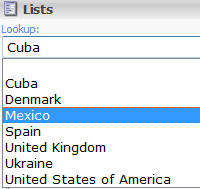
This may be pretty handy in the scenarios with more than one content languages in Sitecore. Let's imagine that we would like to have a lookup field that is used as a "country selector" pulling out those items from the "global" repository:
lookup1

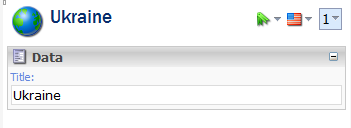
Then let's imagine that we have 2 more content languages besides English in the system (Spanish and Ukrainian) and that our "Country" template that our source items are created from has only one field defined that is not shared across languages and versions called "Title":
lookup2

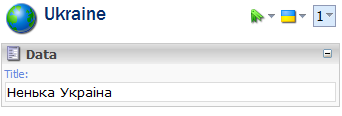
This value is going to be translated into all the languages:
image

lookup3

In other words, the "Title" field will have different values depending on the selected language.

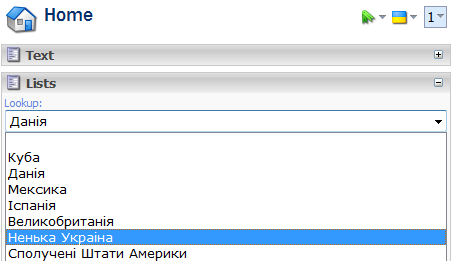
Now it should make a lot of sense to "teach" our lookup field to retrieve those language specific values and show them in the drop down list instead of item names.

In order to do that, we will have to customize the lookup field by inheriting from the default one. The code of the custom lookup field is shown below:

   1: using System;
   2: using System.Collections;
   3: using System.Web.UI;
   4:  
   5: using Sitecore;
   6: using Sitecore.Data.Items;
   7: using Sitecore.Diagnostics;
   8: using Sitecore.Globalization;
   9: using Sitecore.Resources;
  10: using Sitecore.Shell.Applications.ContentEditor;
  11: using Sitecore.Text;
  12:  
  13: namespace SCUSAINC.Shell.Applications.ContentEditor
  14: {
  15:     public class CustomLookup : LookupEx
  16:     {
  17:         // the name of the field that we have defined for the "Template field" template
  18:         private const string sourceFieldName = "SourceFieldName";
  19:         protected string itemlanguage;
  20:  
  21:         protected override void OnLoad(EventArgs args)
  22:         {
  23:             if (!Sitecore.Context.ClientPage.IsEvent)
  24:             {
  25:                 Item contextItem = Sitecore.Context.ContentDatabase.Items[this.ItemID];
  26:  
  27:                 foreach (TemplateFieldItem tfItem in contextItem.Template.OwnFields)
  28:                 {
  29:                     // do the necessary checks
  30:                     if (tfItem.Source == this.Source &&
  31:                         tfItem.InnerItem != null &&
  32:                         tfItem.InnerItem.Fields[sourceFieldName] != null &&
  33:                         tfItem.InnerItem.Fields[sourceFieldName].Value != string.Empty)
  34:                     {
  35:                         // setting the FieldName property that will store the field name of the data source item
  36:                         // that we will consume in the "GetItemHeader" method
  37:                         FieldName = tfItem.InnerItem.Fields[sourceFieldName].Value;
  38:                         break;
  39:                     }
  40:                 }
  41:             }
  42:             base.OnLoad(args);
  43:         }
  44:  
  45:         protected override string GetItemHeader(Item item)
  46:         {
  47:             Assert.ArgumentNotNull(item, "item");
  48:             if (this.FieldName.StartsWith("@"))
  49:             {
  50:                 return item[this.FieldName.Substring(1)];
  51:             }
  52:             if (this.FieldName.Length > 0)
  53:             {
  54:                 if (ItemLanguage != null)
  55:                 {
  56:                     // return the language specific value of the source item's field
  57:                     return Sitecore.Context.ContentDatabase.GetItem(item.ID, Language.Parse(ItemLanguage))[this.FieldName];
  58:                 }
  59:             }
  60:             return item.DisplayName;
  61:         }
  62:  
  63:         // this method is used to retrieve the currently selected content language
  64:         // note that there is no code that sets this value, it is being set from outside by Content Editor
  65:         public string ItemLanguage
  66:         {
  67:             set { this.itemlanguage = value; }
  68:             get { return this.itemlanguage; }
  69:         }
  70:     }
  71: }

This should be compiled and the binary should be copied over to the bin directory. Then you should do two configuration steps and create the field reference in Sitecore:
1. Define the namespace of the control in the <controlSources> section:
<source mode="on" namespace="SCUSAINC.Shell.Applications.ContentEditor" assembly="CustomFields" prefix="custom" />
- the "namespace" attribute  is equaled to the one defined in your class.
- the "assembly" attribute  is obviously the name of the DLL that you compile.
- the "prefix" is something that you define but it will be used in the "field type" item creation step #3 below.

2. Open up "/App_Config/FieldTypes.config" and add the reference to your custom field:
<fieldType name="custom lookup" type="Sitecore.Data.Fields.LookupField,Sitecore.Kernel" />
- the "name" attribute will be the same as the "field type" item name in the last step below.
- the "type" attribute should be the same as above.

3. Create an "field type" item under "/sitecore/system/Field types". The easiest way to do that is to duplicate the existing "lookup" item and change the "Control" field.
Note that you should name the item as the value of the "name" attribute set on the second step.lookup4
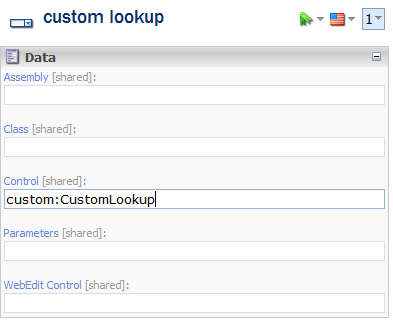
This field will contain the value of the prefix attribute set on the first step and the name of the class that you have previously compiled followed by the colon.

Well, enough boring stuff. Here is the result in Spanish:
lookup5

and in Ukrainian:
lookup6

Hope you find it useful.

Monday, March 24, 2008

TreeList consuming data from another database


Were you ever developing email notifications for workflow that support user selection? I bet you had to proxy users or roles from the security database to have one of the lookup fields consume that data. Then the code will have to check if the selected ID is real or not, go to the security database and verify, things like that. Well, with this solution from Ivan you don't need to do that anymore. Nice-to-have feature!!!

TreeList Field with a Single Selection


The "TreeList" type of a field in Sitecore is quite handy. It supports multiple dynamic parameters and even unofficially supports query. This is sweet, but sometimes you need a single selection with all the features above which is not provided by such single selection lookup types as "Tree", "Lookup", etc.

The simplest way to get past this requirement is simply rely on the "TreeList" type and set a RegExp to validate a selection of a single GUID. In order to do that, locate the field in the Template Manager and set the "Validation" field to ^[{|\(]?[0-9a-fA-F]{8}[-]?([0-9a-fA-F]{4}[-]?){3}[0-9a-fA-F]{12}[\)|}]?$

Don't forget to add a friendly warning to the "ValidationText" field.

Easy!

Wednesday, February 13, 2008

Storing Flash Video files in Sitecore media library


You can certainly do this as many other things, but there is a little bit of a problem here. Since all media stored within Sitecore has a media request handler assigned to it, the actual URL of the media item will have the "ASHX" extension.

The flash video component expects only MP3 and FLV extensions as a source, so "ASHX" will not be processed.

In order to have this working, follow this article for the directions and configure the FLV extension accordingly.

Power of Sitecore: Separation of UI and Data Layers Continued


This is a continuation to the previous blog post about one of the most powerful features of the product.

You can develop a notion of themes in Sitecore very easily. This will allow you as a Sitecore solution developer and architect to create a list of predefined themes for further usage.

Since it is a common best practice to store any meta data or system information that is not relevant to the site content itself in a global section, consider creating a special data template for your custom themes with the following fields:

Layout - any lookup field (I used treelist in this example for good demo purposes) data source is set to /sitecore/layout/layouts. Used for picking up a layout for a theme.

CSS - a field of type "lookup" pointing to a media folder storing all the CSS files.
FavIcon - a field of type "lookup" pointing to a media folder storing all the favorite icon files.

Here is how this can look like:

theme

Our second step will be to extent the content template used for the home page of the website to include a reference to a theme. The idea here is to have a single selection of a theme on the home item. After this, dynamic layout replacement logic will be able to locate the selected theme on the home item and perform layout substitution, as well as CSS and favicon processing. By simply extending the home item template, I have added a tree list field (just for the sake of good demonstration) and pointed it to the "themes" folder:

theme_selection

Next step is to create a dummy empty layout that will be used by the dynamic layout replacement logic. It is pretty simple, any aspx layout will do for that. Here is how it can look:

empty_layout

Notice that you can use it the same way as you used to - assign renderings and sublayouts to placeholders, etc. Again, the GUID of this empty dummy layout will be used the dynamic layout replacement logic which is basically another custom LayoutResolver added after the default one in the httpRequestBegin pipeline:

<processor type="Sitecore.Pipelines.HttpRequest.LayoutResolver, Sitecore.Kernel" />
<processor type="SCUSAINC.SimpleDemoSite.Customizations.Pipelines.LayoutResolver, SCUSAINC.SimpleDemoSite"/>

The logic of this processor is pretty straightforward - replace the EMPTY layout with the one defined in the selected theme.

Here you go - you now can change the overall look and feel of the website with one click! And that's thanks to the dynamic presentation engine and data/UI separation in Sitecore.

Code attached:

using Sitecore;
using Sitecore.Pipelines.HttpRequest;
using Sitecore.Data;
using Sitecore.Data.Items;
using Sitecore.Data.Fields;

namespace SCUSAINC.SimpleDemoSite.Customizations.Pipelines
{
   public class LayoutResolver
   {
      public void Process(HttpRequestArgs args)
      {
         if ((Context.Item != null) && (Sitecore.Context.Database != null))
         {
            LayoutItem layout = Context.Item.Visualization.Layout;
            // check if the layout ID equals to the "EMPTY Layout ID"
            if (layout != null && layout.InnerItem.ID == ID.Parse("{A7DF692D-AA72-4D1F-96D7-6F27B2326DDB}"))
            {
               Item homeItem = Sitecore.Context.Database.Items[Sitecore.Context.Site.StartPath];

               if (homeItem != null)
               {
                  if (homeItem.Fields["theme"] != null && homeItem["theme"] != string.Empty)
                  {
                     if (homeItem.Fields["theme"].Type == "tree list")
                     {
                        MultilistField themeField = homeItem.Fields["theme"];

                        ID themeID = ID.Null;

                        if (ID.TryParse(themeField.Items[0], out themeID))
                        {
                           Item themeItem = Sitecore.Context.Database.GetItem(themeID);

                           if (themeItem != null && themeItem.Fields["layout"] != null && themeItem["layout"] != string.Empty)
                           {
                              if (themeItem.Fields["layout"].Type == "tree list")
                              {
                                 MultilistField layoutField = themeItem.Fields["layout"];

                                 ID layoutID = ID.Null;

                                 if (ID.TryParse(layoutField.Items[0], out layoutID))
                                 {
                                    Item layoutItem = Sitecore.Context.Database.GetItem(layoutID);

                                    Context.Page.FilePath = layoutItem["path"];
                                 }
                              }
                           }
                        }
                     }
                  }
               }
            }
         }
      }
   }
}